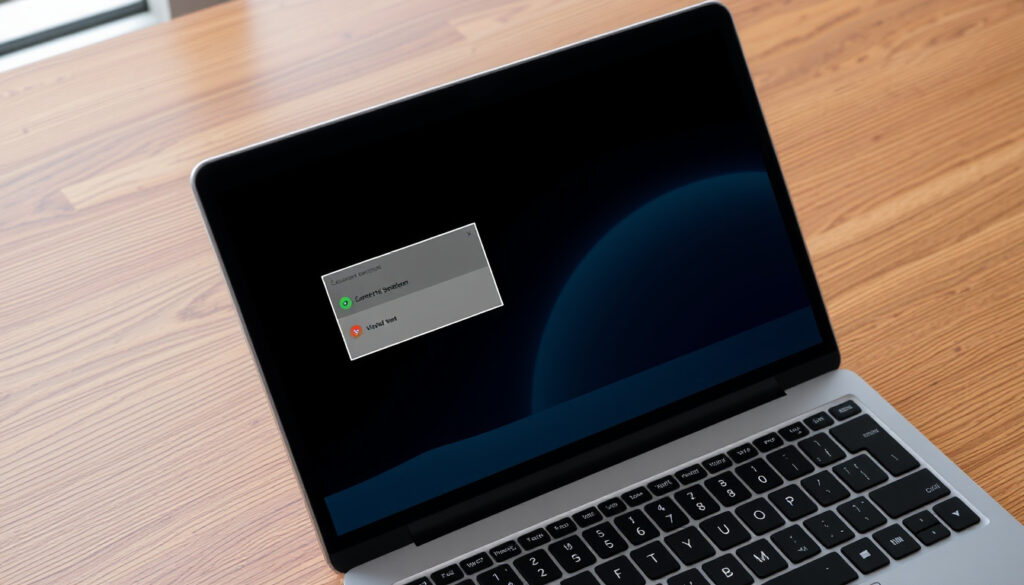
How to Screenshot on Chromebook: Shortcuts and Tips
Switching to a Chromebook often means learning a new set of shortcuts, and taking screenshots is one of the first things you’ll want to master. Whether you’re capturing a full webpage or just a snippet for a quick note, ChromeOS gives you a few reliable keystrokes to get the job done.
Full screenshot shortcut: Ctrl + Show Windows ·
Partial screenshot shortcut: Shift + Ctrl + Show Windows ·
Screenshot key appearance: Rectangle with two vertical lines ·
Default save location: Downloads folder ·
Default file format: PNG
Quick snapshot
- Ctrl + Show Windows captures the full screen (Google Help: Chromebook keyboard shortcuts)
- Shift + Ctrl + Show Windows captures a partial area (Google Help)
- Screenshots are saved as PNG files in the Downloads folder (Google Help: Take a screenshot)
- Whether Ctrl+Shift+S works on some Chromebooks is not officially supported (Google Help)
- The exact labeling and location of the Show Windows key varies across Chromebook models (Lenovo: Chromebook glossary)
- The behavior of the screenshot key on external keyboards may differ depending on the keyboard’s firmware (Google Help: external keyboards)
- The screenshot shortcuts have remained unchanged since 2026 (Google Help (updated 2026))
- ChromeOS is gradually merging screen recording into the same capture flow (Google Help: screen recording)
Five essential facts about Chromebook screenshots appear in the table below, all drawn from Google’s official documentation and hardware partners.
| Property | Value |
|---|---|
| Default file format | PNG |
| Default save location | Downloads folder |
| Full screen shortcut | Ctrl + Show Windows |
| Partial screen shortcut | Shift + Ctrl + Show Windows |
| Screenshot key icon | Rectangle with two vertical lines |
The pattern is consistent: every ChromeOS device uses the Show Windows key as the centrepiece of its screenshot shortcuts.
What is the shortcut for screenshot in Chrome?
Full-screen screenshot: Ctrl + Show Windows
- The primary full-screen shortcut is Ctrl + Show Windows (Google Help: Chromebook keyboard shortcuts).
- Press both keys simultaneously; the screen dims briefly and the screenshot is saved automatically to the Downloads folder.
Partial screenshot: Shift + Ctrl + Show Windows
- For a partial screenshot, use Shift + Ctrl + Show Windows (ASUS FAQ).
- A crosshair cursor appears; drag to select the area you want. The capture is saved as a PNG file.
ChromeOS uses the same two-key combo for full screenshots as Windows (Ctrl + something), but replaces the Print Screen key with the Show Windows key. Users switching from Windows need only relearn one button.
Bottom line: Every Chromebook model uses Ctrl + Show Windows for full screenshots and Shift + Ctrl + Show Windows for partial captures. No other built-in shortcut exists.
How do I take a screenshot on a Chromebook without a Windows key?
Using the Show Windows key
- Chromebooks do not have a Windows key; use the Show Windows key instead (Lenovo: Chromebook glossary).
- The Show Windows key is located in the top row and usually looks like a rectangle with two vertical lines.
Using Ctrl + F5 as alternative
- If your keyboard lacks a Show Windows key, press Ctrl + F5 (Google Help: external keyboards).
- This combination works on external keyboards where the function row differs.
Using the screen capture tool from the status area
- Click the clock area (bottom-right), then select the screen capture icon (ASUS FAQ).
- This opens the same screenshot toolbar with full and partial options.
Bottom line: No Windows key? No problem. The Show Windows key works the same way. For external keyboards, Ctrl + F5 serves as the fallback.
What does the Chromebook screenshot key look like?
Identifying the Show Windows key
- The key is marked with a rectangle icon that has two vertical lines on the right side (Google Help).
- It is usually located in the top row of function keys, often between the full-screen and brightness keys.
Location on the keyboard
- On some models it may be labeled F5 or have a small camera icon (Lenovo: Chromebook glossary).
- The key sits in the top row; on compact keyboards it may be combined with another function.
New Chromebook users often confuse the Show Windows key with the full-screen maximize key (a square icon). The presence of two vertical lines distinguishes it. Knowing what to look for reduces frustration.
The pattern: The Show Windows key is consistently marked with two vertical lines, distinguishing it from the full-screen key.
How do I take a screenshot in Chromebook?
Full-screen capture
- Full-screen: press Ctrl + Show Windows (Google Help).
- Screenshots are saved as PNG files in the Downloads folder (Google Help).
Partial area capture
- Partial: press Shift + Ctrl + Show Windows, then drag to select area (ASUS FAQ).
- The selection tool lets you capture a custom rectangle.
Using the stylus or touch screen
- On touchscreen Chromebooks, you can press the stylus button or use the on-screen capture tool (Google Help).
- Tablet mode uses Power + Volume down (Google Help).
Bottom line: The two keyboard shortcuts cover 95% of use cases. For tablet or stylus, the hardware-specific methods kick in.
Is it Ctrl+Shift+S to screenshot?
The correct shortcut for partial screenshots
- The official shortcut for a partial screenshot is Shift + Ctrl + Show Windows, not Ctrl+Shift+S (Google Help).
- Ctrl+Shift+S is a Windows shortcut (Snipping Tool) and is not standard on ChromeOS.
Common misconceptions
- Some third-party tools may remap Ctrl+Shift+S but it is not built-in (Lenovo).
- On school-managed Chromebooks, extensions may add custom shortcuts, but the OS defaults remain unchanged.
If you press Ctrl+Shift+S out of habit from Windows, nothing will happen on a Chromebook. The correct partial shortcut always includes the Show Windows key, not the letter S.
The implication: Users switching from Windows must unlearn the Ctrl+Shift+S habit.
Step-by-step: How to take a screenshot on Chromebook
- Full screen: Press Ctrl + Show Windows simultaneously. The screen will flash; the image saves to
Downloadsas a PNG (Google Help). - Partial screen: Press Shift + Ctrl + Show Windows. Drag the crosshair to select a region, release the mouse. The capture saves automatically (ASUS FAQ).
- Using the toolbar: Click the clock area, then the screen capture icon. Choose full-screen, partial, or window capture (Google Help).
- Tablet mode: Press Power + Volume Down at the same time (Google Help).
- External keyboard: If your keyboard lacks a Show Windows key, use Ctrl + F5 for full screen, and Ctrl + Shift + F5 for partial (Google Help: external keyboards).
- Finding screenshots: Check the
Downloadsfolder in the Files app. File names follow the patternScreenshot_YYYY-MM-DD_HHMMSS.png.
On school Chromebooks, the screen capture tool may be disabled by administrator policy. In that case, only keyboard shortcuts work — and only if the admin hasn’t blocked them.
The catch: School policies may override these shortcuts.
What we know and what isn’t clear
Confirmed facts
- Ctrl + Show Windows captures the full screen (Google Help).
- Shift + Ctrl + Show Windows captures a partial area (ASUS FAQ).
- Screenshots are saved as PNG files in the Downloads folder (Google Help).
What’s unclear
- Whether Ctrl+Shift+S works on some Chromebook models is not officially supported (Google Help).
- On school-managed devices, administrators can disable screenshot capabilities entirely; there is no standard visibility into those restrictions.
- The exact location of the Show Windows key varies by manufacturer and is not standardized (Lenovo: Chromebook glossary).
- The behavior of the screenshot key on external keyboards may differ depending on the keyboard’s firmware (Google Help: external keyboards).
- The exact behavior of the screenshot key on Chromebooks with a touchscreen may differ from the standard shortcuts (Google Help).
The pattern: The OS-level shortcuts are well-documented, but third-party and administrative variations are not.
What Chromebook users say
“The Chromebook screenshot process is straightforward and can be done with a few simple keystrokes, making it easy for anyone to capture what’s on their screen.”
— Lenovo: How to Screenshot on a Chromebook (Lenovo glossary)
“Chromebooks offer a handy feature to capture your screen using keyboard shortcuts or the screen capture tool.”
— ASUS Chromebook support (ASUS FAQ)
For students using school-managed Chromebooks, the key takeaway is: learn these shortcuts, or find out if your admin has enabled the screen capture tool. For everyone else, the Ctrl + Show Windows and Shift + Ctrl + Show Windows combos are all you need, and they have been consistent for years. The fastest way to become proficient is to memorize those two shortcuts — you’ll be capturing screens in seconds.
youtube.com, reddit.com, youtube.com, youtube.com, youtube.com, beginrescueend.com, youtube.com, reddit.com
For a more comprehensive walkthrough, check out this detailed guide on Chromebook screenshots that covers all the latest shortcuts and tips.
Frequently asked questions
How do I take a screenshot on a Chromebook without a keyboard?
Use the screen capture tool in the status area (click the clock, then the capture icon). On tablet Chromebooks, press Power + Volume Down.
Can I schedule screenshots on Chromebook?
ChromeOS does not have a built-in scheduler for screenshots. You can use a third-party extension like “Super Screenshot” for timed captures, but note that these are not officially supported.
How to take a screenshot on a Chromebook and paste it directly into a document?
The screenshot is saved as a file. You can open any document or editor and Ctrl+V the image from the Downloads folder, or use the built-in clipboard for partial captures (the toolbar offers a “copy to clipboard” option).
What is the difference between screenshot and screen recording on Chromebook?
A screenshot captures a static image. Screen recording captures a video of your screen. On ChromeOS, both are accessed via the screen capture toolbar (Ctrl + Shift + Show Windows opens the toolbar, which offers both options). Source: Google Help.
How to take a screenshot on a Chromebook with a broken screen?
If the screen is broken but the Chromebook is still responsive, you can use an external monitor (HDMI or USB-C). The shortcuts work normally on the external display. Without a display, screenshots are not possible because you need to see the capture area.
Can I take a screenshot on a Chromebook in guest mode?
Yes, the same keyboard shortcuts (Ctrl + Show Windows, Shift + Ctrl + Show Windows) work in guest mode. However, screenshots will not be saved to the Downloads folder because guest mode does not preserve user data; they will disappear when you exit guest mode.
How to take a screenshot on a Chromebook using voice commands?
ChromeOS does not have native voice screenshot commands. You can use Google Assistant (via “Hey Google”) if enabled on your Chromebook, but there is no direct “take a screenshot” command; Assistant will instead suggest using the keyboard shortcut.
More related posts
 Food and Wine Festival 2024: Dates, Lineups, What to Wear
 Microsoft Customer Service Number: Phone, Chat & Billing Support
 U.S. Presidential Election Results: History, Years, and Key Facts
 Best Fish Oil Supplements for 2026: Expert Top Picks
 How Old Is Ozzy Osbourne? Age, Cause of Death, Estate
 Avatar: The Last Airbender Guide: Season 2, Characters & FAQs
 Millie Bobby Brown & Jake Bongiovi: Full Relationship Timeline
 Get Well Soon Message: 100+ Alternatives & Examples