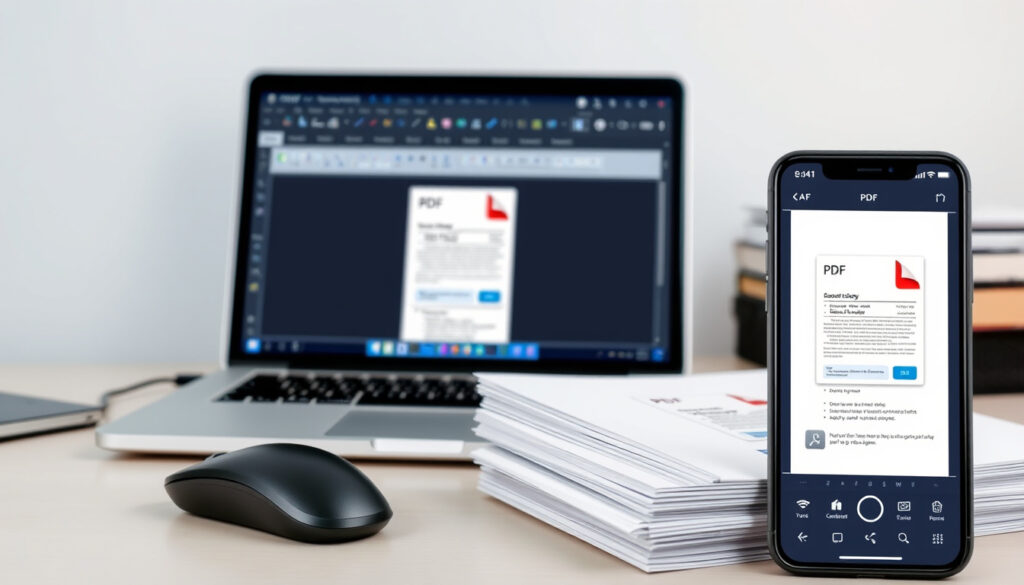
How to Edit a PDF: Free Methods for Any Device
You’ve got a PDF sitting on your desktop, and you just need to tweak a few lines, add a note, or fix a typo. But the file won’t let you click anywhere — it feels locked, finished, untouchable. The good news: editing a PDF without buying expensive software is simpler than most people think, and there are solid free tools that work on pretty much any device you own.
PDF introduced: 1993 by Adobe Systems ·
ISO standard: ISO 32000-1 (2008) ·
Free online editors: 50+ available
Quick snapshot
- No installation required (Adobe Acrobat Online)
- Basic editing features available for free (Adobe Acrobat Online)
- Limited file size on some platforms (Adobe Acrobat Online)
- Full feature set with text and image editing
- Works offline without internet
- Often paid, but free trials available
- Edit on the go from any phone or tablet
- Touch-friendly interface for quick edits
- May require subscription for full features
- Free tools continue to improve each year
- AI-assisted editing is becoming more common
- Browser-based editors now rival desktop options
Most people do not need a paid PDF editor. Adobe’s free online tool, Microsoft Word (if you already have Office), and mobile apps like Canva cover 90% of everyday editing tasks — adding text, signing, highlighting, and erasing content. The trick is knowing which tool fits your specific situation.
How can I convert a PDF to an editable document?
Using Microsoft Word
If you have Microsoft Word (Office 2013 or later), you already own one of the most capable PDF converters. Word opens PDFs natively, converts them into editable Word documents, and lets you save the result back as a PDF. Microsoft Support official help channel notes this is a built-in feature, but warns that formatting can shift — complex layouts with multiple columns or embedded images may not transfer perfectly.
- Open Word, click File > Open, and select your PDF file.
- Word will show a message that it’s converting the PDF. Click OK.
- Edit the text and images as you would any Word document.
- Save as PDF via File > Save As and choose PDF format.
The catch: this only works if you already own Word. A standalone license costs around $150, making it a poor choice for someone who only needs to edit one PDF. For that scenario, free online converters are better.
Using online converters
Online PDF editors do not require any installation. You upload the file, make changes in a browser interface, and download the result. Adobe Acrobat Online (free browser tool) provides a full editing toolbar with text, sticky notes, highlights, drawings, and signatures — and runs on any device including mobile. Smallpdf (popular browser-based editor) offers similar features with a clean interface and works across Mac, Windows, and mobile without any account requirement for basic edits.
- Go to the editor’s website (Adobe, Smallpdf, PDFgear).
- Drag and drop your PDF file into the upload area.
- Use the toolbar to add text, shapes, annotations, or signatures.
- Download the edited PDF — no account needed for most basic features.
For more tips on using your browser efficiently, check out our guide on How to Screenshot on Chromebook.
Using Adobe Acrobat
The full desktop version of Adobe Acrobat Pro offers the most complete PDF conversion toolkit. Adobe’s official how-to guide (Adobe Support) outlines the process: open the file in Acrobat, click Edit PDF, and use the editing panel to modify text, images, and formatting. The Pro version costs about $20/month — but the free 7-day trial covers most one-off conversion needs.
- Open Acrobat and navigate to Tools > Edit PDF.
- Select text or images directly on the page to edit them.
- Use the right-hand panel to add new text, images, or headers.
- Save the file — formatting stays nearly identical to the original.
The trade-off: Acrobat Pro handles complex layouts (multi-column text, scanned images with OCR, custom fonts) better than free alternatives. For a single PDF, the free trial is sufficient. For regular editing, the subscription becomes expensive compared to free alternatives like Smallpdf.
The pattern: free tools are excellent for simple text edits and annotations, but paid software still wins for complex, high-fidelity conversions. Choose based on how many pages and how much formatting you need to preserve.
How do I edit a document that is already a PDF?
Using Adobe Acrobat
Editing a PDF directly — without converting to another format — is Adobe Acrobat’s core strength. Adobe’s help documentation (official product support) explains that once you click Edit PDF, the software automatically recognizes text blocks, images, and form fields. You can click on any text to start typing, delete words, or adjust formatting. For images, you can move, resize, or replace them entirely.
- Open the PDF in Acrobat Reader or Acrobat Pro.
- Click Edit PDF from the right-hand panel.
- Click on any text block to start editing — font, size, and color options appear.
- Right-click images to replace, rotate, or delete them.
- Save the edited file using File > Save.
Acrobat Reader (the free version) only allows annotations, not full text editing. To edit actual text, you need Acrobat Pro — but the free 7-day trial works for most one-time editing needs.
Using free online editors
Free online editors let you edit PDF text directly in the browser. Adobe Acrobat Online (free browser version) allows text editing, sticky notes, highlights, and drawings on any device. Canva’s PDF editor (design-focused tool) takes a different approach: it imports the PDF into Canva’s design interface, where you can edit text, add design elements, and reposition content like a graphic design project. For mobile users, Canva’s workflow starts by opening the app, tapping Projects, then importing the PDF from your device.
- Adobe Online: Upload file → Use toolbar to edit text → Download.
- Canva: Open Projects → Choose Upload or Import → Edit as a design → Export as PDF.
- Smallpdf: Drag PDF into upload area → Use text/image/shape tools → Download edited file.
- PDFgear: Select or drag PDF into editor → Use annotation, stamp, and signature tools → Download.
The implication: for quick text edits, Adobe Online is the most direct. For visual edits — changing colors, adding borders, replacing images — Canva gives you more creative control. Smallpdf offers the best balance of speed and features for most users.
Using Canva
Canva treats PDFs like design projects. Canva’s PDF editor documentation (Canva Support) says you can edit, comment on, and annotate PDFs from any device after import. This approach works especially well for PDFs that are already design-heavy — brochures, flyers, presentations. You get access to Canva’s library of fonts, graphics, and templates to completely redesign the document.
- Open Canva on web or mobile and click Create a design.
- Select Import PDF and choose your file.
- Edit text by clicking on it — change font, color, size, even replace with brand fonts.
- Add elements — shapes, icons, images, charts — from Canva’s library.
- Download the edited file as PDF (free users get standard quality).
Canva is not ideal for text-heavy documents with complex formatting — it may misplace text blocks or change font rendering. But for visual PDFs that need a facelift, it’s the best free option available.
How do you unlock a PDF for editing?
Using password removal tools
Some PDFs come with a password that prevents editing. If you know the password, you can unlock the file using free tools. Smallpdf’s editor (password-enabled tool) handles password-protected files — just enter the password when prompted, and the file unlocks for editing. PDFgear (free permission-handling editor) also supports opening restricted PDFs if you have the password.
- Upload the protected PDF to Smallpdf or PDFgear.
- Enter the password when asked.
- Once unlocked, edit the PDF as normal.
- Download the edited version — the password protection may be removed.
Important: unlocking a PDF that you do not own the password to, or that you did not create, may violate copyright or license terms. Only unlock files you have permission to edit.
Using Adobe Acrobat
Adobe Acrobat Pro allows you to remove editing restrictions if you know the document’s permissions password. Adobe’s PDF editing guide (official product documentation) notes that you go to File > Properties > Security, then select “No Security” from the Security Method dropdown. You will be prompted to enter the password to confirm the change.
- Open the PDF in Acrobat Pro.
- Go to File > Properties > Security tab.
- Change Security Method to No Security.
- Enter the document password if prompted.
- Save the file — editing restrictions are now removed.
The catch: if you do not have the permissions password, you cannot legally remove protection. Some online services claim to “crack” PDF passwords, but these are often unreliable and may compromise your privacy.
Using online services
Several online services offer password removal for PDFs. pdfFiller (browser-based editing service) describes itself as usable in any browser and lets users start without an account. You upload the PDF, and if you have the password, the service unlocks the editing features. DocLab (privacy-focused browser editor) takes a different approach: it processes the PDF entirely on your device — no file uploads to servers — and then lets you reorder, rotate, delete, duplicate, and extract pages, plus add annotations and signatures.
- pdfFiller: Upload PDF → Enter password if required → Edit and download.
- DocLab: Open PDF in browser → File stays on device → Edit pages and annotations → Download locally.
The implication: unlocking a PDF is straightforward if you have the password. If you don’t, there is no ethical free tool that can help — any service claiming otherwise should be treated with extreme caution.
What is the easiest way to edit a PDF?
Online editors
Online editors are the easiest option for most people because they require zero setup. Adobe Acrobat Online (free browser tool) works on any device with a modern browser — desktop, tablet, mobile. The workflow is straightforward: select a file, upload it, sign in to add comments, use the toolbar to add text, sticky notes, highlights, drawings, then download or share. Smallpdf (fast browser-based editor) offers the same simplicity with a slightly different interface: import or drag and drop a PDF, add text, images, shapes, markups, and e-signatures, organize pages, export, and download.
- Adobe Online: Upload → Edit text/annotations → Download.
- Smallpdf: Drag & drop → Add text/images/shapes → Export and download.
- PDFgear: Select or drag PDF → Use toolbar → Download.
The trade-off: online editors need internet access and may have file size limits. Adobe Online works best for files under 100 MB. Smallpdf offers a generous free tier but limits the number of free edits per day.
Desktop software
Desktop software offers the most features but requires installation. Adobe Acrobat Pro (industry-standard desktop software) provides the most comprehensive editing toolkit: full text editing, image replacement, OCR, form creation, and advanced security options. For users who already own Microsoft Word, opening a PDF in Word remains the easiest desktop method for simple text changes — just be prepared for potential formatting shifts.
- Acrobat Pro: Open → Edit PDF → Full text/image editing → Save.
- Microsoft Word: Open PDF → Convert to Word → Edit → Save as PDF.
- PDFgear (desktop): Download free software → Open PDF → Edit using toolbar tools.
The implication: desktop software is the easiest choice only if you already own it. Downloading and learning a new desktop app takes more time than using an online editor for a one-time task.
Mobile apps
Mobile apps let you edit PDFs on the go. Canva’s mobile PDF editor (design-focused app) works on both iPhone and Android: open Projects, choose Upload or Import from app, then open the uploaded PDF from Designs. Adobe Acrobat Online (mobile browser tool) also works from any phone’s browser without installing a dedicated app.
- Canva (mobile): Open app → Projects → Upload PDF → Edit as design → Export PDF.
- Adobe Online (mobile browser): Go to website → Upload PDF → Edit → Download.
- PDFgear (mobile browsers): Works on mobile browsers including iOS and Android.
The catch: mobile editing is practical for quick annotations and minor text changes, but complex edits are easier on a desktop. Touch-based text selection can be finicky, and screen real estate limits multitasking.
How do I open a PDF file so I can edit it?
Opening in Word
Microsoft Word opens PDFs as editable documents. Microsoft Support’s official guidance (product support team) explains that from Word 2013 onwards, the software can open PDF files natively. When you double-click a PDF file on most Windows computers, Word may not be the default handler — so you need to right-click the file, select “Open with,” and choose Word. Word then converts the PDF into its own format, preserving most text and basic formatting.
- Right-click the PDF file on your computer.
- Select Open with > Word.
- Click OK when Word shows the conversion notification.
- Edit the document as needed.
- Save as PDF: File > Save As > choose PDF.
The trade-off: Word handles simple PDFs well — text-heavy documents with basic tables and headings — but complex layouts with columns, embedded images, or custom fonts can break badly. Images may shift, fonts may change, and page breaks may not match the original.
Opening in Adobe Acrobat
Adobe Acrobat is the native PDF tool — it opens PDFs with perfect fidelity. Adobe’s official editing workflow (Adobe Support documentation) says users can open a file in Acrobat, click Edit PDF, and use editing tools to add or edit text and images, annotate, and save the edited file. No conversion is needed — the file stays as a PDF throughout the editing process.
- Open Acrobat (Reader or Pro).
- Click File > Open and select the PDF.
- In Acrobat Pro, click Edit PDF from the right panel.
- Make your changes — text, images, annotations.
- Save the file directly back as PDF.
The implication: Acrobat is the only tool that opens a PDF for editing without any conversion step. The downside: the free Reader only allows annotations, not full text editing. The Pro version is needed for real changes — but the free trial runs for 7 days.
Opening in browser-based editors
Browser-based editors open PDFs directly in your web browser without any software download. Adobe Acrobat Online (browser-based tool) loads the PDF into an editing interface inside the browser. Smallpdf (browser editor) does the same, offering text, image, shape, and signature tools. PDFgear (cross-platform browser editor) supports Linux, Windows, macOS, and mobile browsers.
- Open Chrome, Edge, or Safari on any device.
- Go to the editor’s website (Adobe, Smallpdf, PDFgear).
- Drag and drop the PDF file into the upload area.
- The PDF opens in the browser — start editing immediately.
- Download the edited file when done.
The pattern: browser-based editors are the most universal option — they work on any device, require no installation, and handle the entire editing process online. The only catch is internet dependency and file size limits.
Comparison of Free PDF Editors
Five free PDF editors, one key pattern: each tool excels in a specific scenario, and none covers every use case perfectly.
| Tool | Best For | Free Features | Platform |
|---|---|---|---|
| Adobe Acrobat Online | Text editing & annotations | Text, sticky notes, highlights, drawings, signatures | Web, mobile, desktop |
| Smallpdf | All-around editing | Text, images, shapes, e-signatures, page organization | Web (Mac, Windows, mobile) |
| Canva PDF Editor | Visual design editing | Full design toolkit, fonts, graphics, text editing | Web, iOS, Android |
| PDFgear | Cross-platform access | Text, shapes, annotations, stamps, signatures, highlights | Web (Linux, Windows, macOS, mobile) |
| DocLab | Privacy-focused editing | Page reordering, rotate, delete, annotations, signatures | Web (file stays on device) |
Upsides & Downsides of Free PDF Editing
Upsides
- No software purchase needed — free online tools handle most edits
- Works on any device with a modern browser
- Annotations and signatures are universally free
- Conversion to Word format is built into Microsoft Word (if owned)
- Mobile apps allow on-the-go editing
Downsides
- Free tools often limit file size or number of edits per day
- Complex layouts may lose formatting during conversion
- Full text editing requires paid software (Acrobat Pro)
- Internet connection required for online editors
- Privacy concerns with uploading sensitive documents
youtube.com, youtube.com, smallpdf.com, adobe.com, adobe.com
For even more approaches, including both free and paid options, check out other step-by-step PDF guides that cover additional software and workflows.
Frequently asked questions
Can I edit a PDF on a Chromebook?
Yes. Browser-based editors like Adobe Acrobat Online and Smallpdf work on Chromebooks through Chrome. No installation needed.
Is editing a PDF the same as editing a Word document?
No. PDFs are designed as fixed-layout documents. Editing text often requires either specialized software or conversion to Word format, which can alter formatting.
Do I need to install software to edit a PDF?
No. Free online editors like Adobe Acrobat Online and Smallpdf work entirely in your browser.
Can I edit a scanned PDF?
Editing a scanned PDF requires Optical Character Recognition (OCR). Adobe Acrobat Pro includes OCR, but free tools typically cannot edit scanned document text directly.
How to edit a PDF without Adobe?
Use Smallpdf, Canva, PDFgear, or Microsoft Word if you have Office. All work without Adobe software.
How to edit a PDF on a tablet?
Use Canva’s iOS/Android app or access Adobe Acrobat Online through a tablet browser.
How to save edits in a PDF?
Most online editors have a Download button. On desktop software (Word, Acrobat), use File > Save or Save As. The file remains a PDF unless you convert it.
How to edit a PDF with images?
Use Adobe Acrobat Online for simple image replacement, or Canva for full image editing, resizing, and repositioning.
For anyone who uses PDFs regularly — students, freelancers, small business owners — the choice is clear: a browser-based editor like Smallpdf or Adobe Online handles everyday edits for free, with zero setup. If you already own Microsoft Word, that’s your best option for text-heavy documents. For privacy-sensitive files, DocLab keeps everything on your device. No single tool covers every scenario, but the combination of a good online editor and Word covers 95% of PDF editing needs without spending a dime. For more digital how-to guides, see How to Do a Google Image Reverse Search.
More related posts
 Indiana Obituaries by Last Name – Free Search Guide
 Yin and Yang Meaning: Symbolism, Balance, and Clarity
 AT&T Pay Bill – Guide to All Methods and Fees
 Dave Chappelle Net Worth: $100 Million in 2026
 Men’s Haircuts 2026: Top Styles, Trends, & How to Choose
 When Was the Declaration of Independence Signed – Adopted July 4, Signed August 2
 Atlanta Braves vs Pittsburgh Pirates Player Stats (Jun 5, 2026)
 How to Get Rid of a Stomach Ache in 5 Minutes: Fast Remedies